You are not logged in.
- Topics: Active | Unanswered
Pages: 1
#1 2026-07-11 00:46:48
- Plaguedplatypus
- Member
- Registered: 2026-06-06
- Posts: 11
Plague's Rotation Cue
Rotation Cue
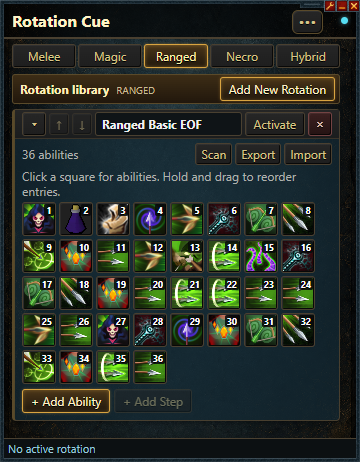
Rotation Cue helps you follow an ability rotation in RuneScape. It can watch abilities on your action bars and moves to the next cue after you use one.
Rotation Cue is only a visual aid. It does not press keys or play the game for you.
What Rotation Cue Can Do
- Build Melee, Magic, Ranged, Necromancy, and Hybrid rotations.
- Add abilities, spells, aspects, prayers, items, and cue markers.
- Show the next cue in a floating overlay.
- Highlight the current ability on your RuneScape action bar.
- Move to the next cue after an ability is used.
- Loop back to the start when a rotation ends.
- Export and import rotations to share them.
Before You Start
Source:
source: GitHub
Add APP:
alt1://addapp/https://plaguedplatypus.github.io/PlaguesRotationCue/appconfig.json
Requirements:
- Cooldown timer must be enabled and on the Top Right.
- Interface scaling must be at 100%.
Make a Rotation
1. Pick a combat style at the top of the app.
2. Select Add New Rotation.
3. Give the rotation a name.
4. Select + Add Ability to add an empty step.
5. Select the empty square to open the picker.
6. Choose a section, then select the ability or action you want.
7. Repeat these steps until the rotation is finished.
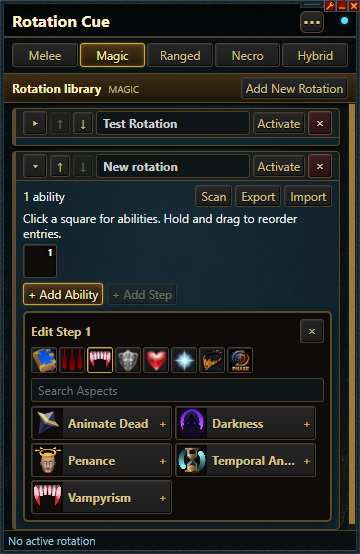
Use the search box when you know the name of what you want. The small section icons let you view abilities, spells, aspects, defensive abilities, utility abilities, prayers, items, or cue markers.
You can drag steps to put them in a new order. You can also remove a step with its small X button.
Start a Rotation
Select Activate beside the rotation you want to use.
Rotation Cue will quietly scan your visible action bars. The current step will appear in the floating cue overlay. If that ability is on an action bar, it will also be outlined on the bar.
When you use the ability, Rotation Cue will move to the next step. By default, the rotation starts again after the last step.
Select Deactivate when you want to stop using the rotation.
Cue Markers
Cue markers are reminders inside a rotation:
- **Phase** reminds you that a new fight phase has started.
- **Wait** reminds you to pause.
- **Move** reminds you to change position.
Cue markers do not move forward by themselves. Press Alt+1 when you are ready for the next cue.
Change the Cue Overlay
Open Settings with the three-dot button in the top-right corner.
The Cue Overlay section lets you:
- Show or hide the large floating cue.
- Move the cue to another place on your screen.
- Make the cue larger or smaller.
- Choose how many upcoming abilities are shown.
- Change the current cue's border size and color.
- Use 50% icon opacity.
- Show or hide ability names.
- Show or hide the NEXT label.
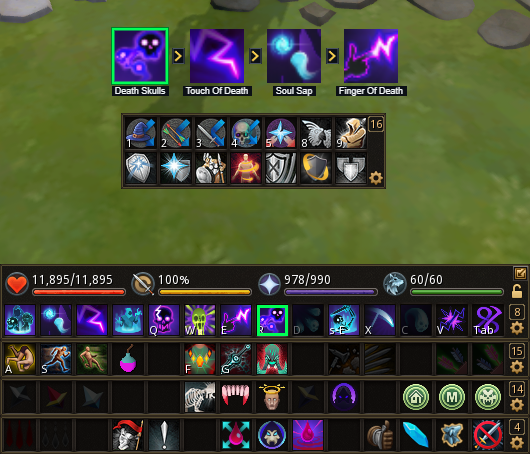
To move the overlay, select Reposition Overlay, move the preview where you want it, and press Alt+1. The position will be saved.
Hiding the large cue does not hide the outline on your RuneScape action bar. You can use either cue style or both.
Save and Share Rotations
Your rotations are saved automatically.
Select Export to save a rotation file for sharing. Select Import to open a rotation file that someone shared with you.
If Something Is Not Working
- Make sure the needed action bar is visible.
- Make sure no other window covers the action bar.
- Select **Scan** when your action bars have moved or an ability was not found.
- Try scanning while your abilities are ready and not darkened by cooldowns.
- Use **Alt+1** for steps that do not move forward automatically.
Last edited by Plaguedplatypus (2026-09-13 08:40:16)
Offline
#2 2026-09-06 12:44:55
- Plaguedplatypus
- Member
- Registered: 2026-06-06
- Posts: 11
Re: Plague's Rotation Cue
Update
Improved action bar reading and icon matching. Added more abilities to the rotation creator; including Aspects and some spells. See main post.
Last edited by Plaguedplatypus (2026-09-13 08:40:59)
Offline
#3 2026-09-11 18:49:57
- Plaguedplatypus
- Member
- Registered: 2026-06-06
- Posts: 11
Re: Plague's Rotation Cue
Update
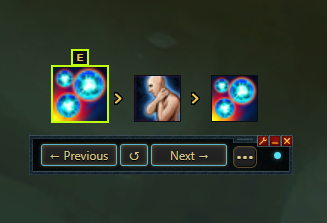
Added a movable rotation control panel. just resize the app window after activating a rotation.
Last edited by Plaguedplatypus (2026-09-13 08:40:42)
Offline
Pages: 1